How to change the Read More text - Divi Blog modules
Who is this article for
- Anyone who owns Divi Den Pro and wants to know how to change the "Read More" text.
Skill level:Easy
Time to complete: **2 minutes
Before you start
-
Please make sure you have the latest Divi Theme installed and Divi Den Pro/Assistant Plugin is up to date.
-
Make sure that the API key is activated.
Video Tutorial
How to do it
Firefox
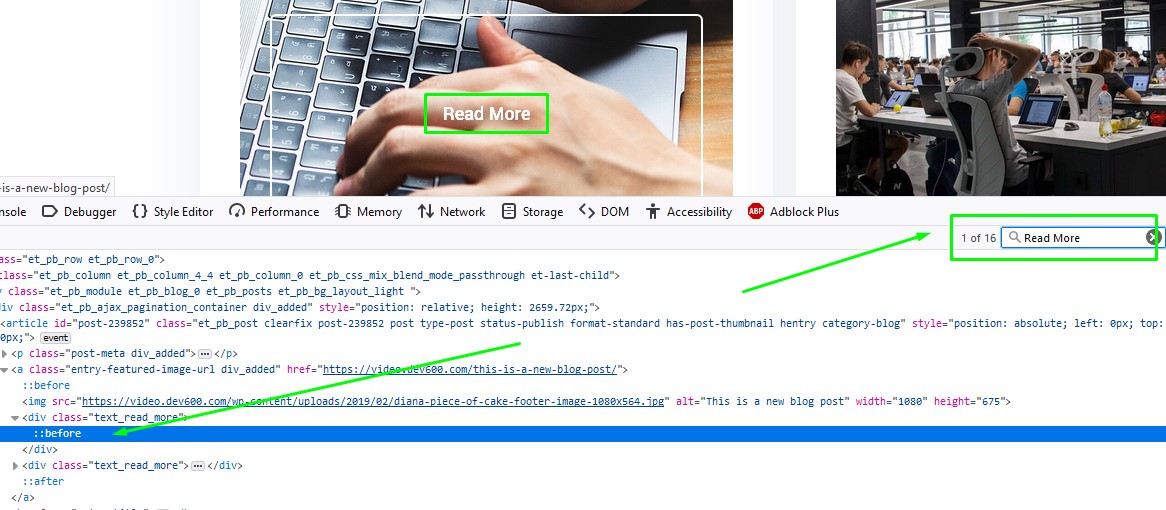
- Press F12 on your keyboard to open Developer Tools.
- Inside the search box, type "Read More". Chrome
- Press F12 to open Developer Tools
- Press CTRL + SHIFT + F to open up the search. On MAC, press CMD + F. Inside the search box, type "read more". This will automatically select the text for you:
On the right there's the CSS for this element.
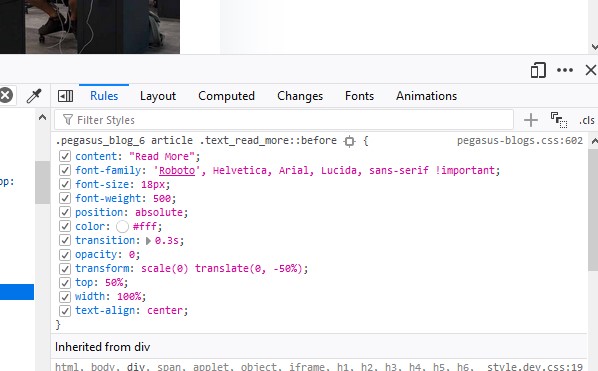
Let's copy this and paste it here: Divi> Theme Options>Custom CSS:
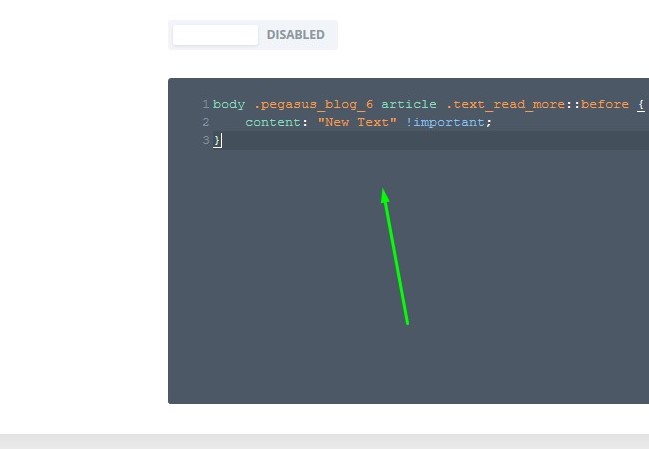
We don't need the whole CSS block, so let's only keep the line with the content text.
Now it's time to change the string too - you can type any text you want.
In addition, add "body" selector at the beginning of the CSS, or/and "!important" rule. This will ensure that this new CSS is going to override the default one.
Click "Save Changes" and all done!